How to Make an AI Music Video (Start to Finish)
Generate the track, generate the visuals, and cut them to the beat — a whole music video from one chat, no band, no film crew. Here is the start-to-finish workflow.
Chinmay Goyal
Co-founder & CTO, Buckshot Studios
A music video is the purest test of AI's multimodality: it needs a track, a set of visuals, and — the part most people miss — those visuals cut to the beat of that track. Get all three from one place and you can make a full music video without a band, a director, or a film crew. Here's how to do it start to finish.
Start with the track
Everything keys off the music, so make it first. Describe the genre, the energy, and the mood — and decide the tempo. The BPM matters more than anything else here, because it's the grid your edit will cut to. A generated instrumental gives you a track you own, at a tempo you set, ready to drive the visuals.
(Know the BPM you asked for and keep it — you'll need it at the edit stage.)
Plan the visuals to the song
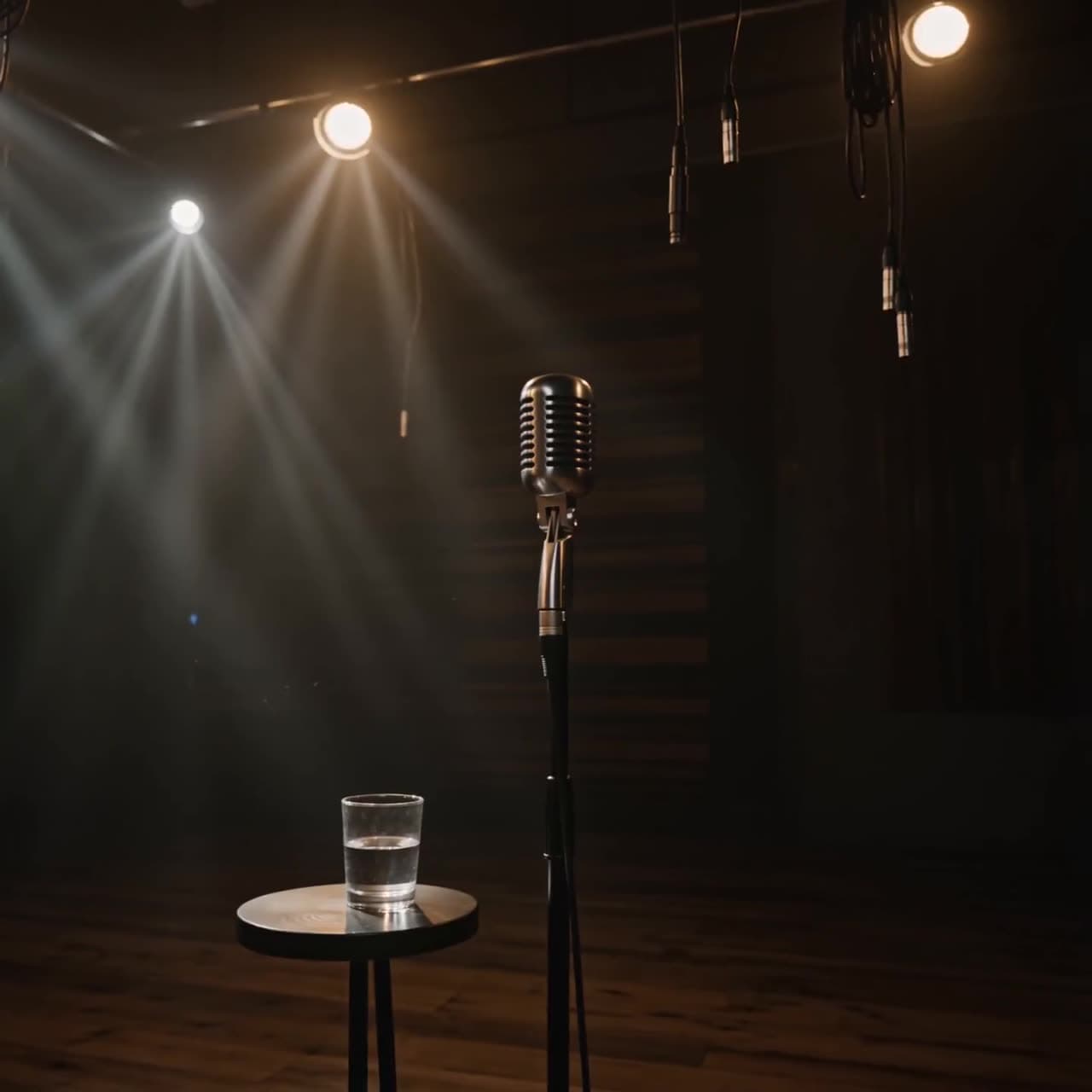
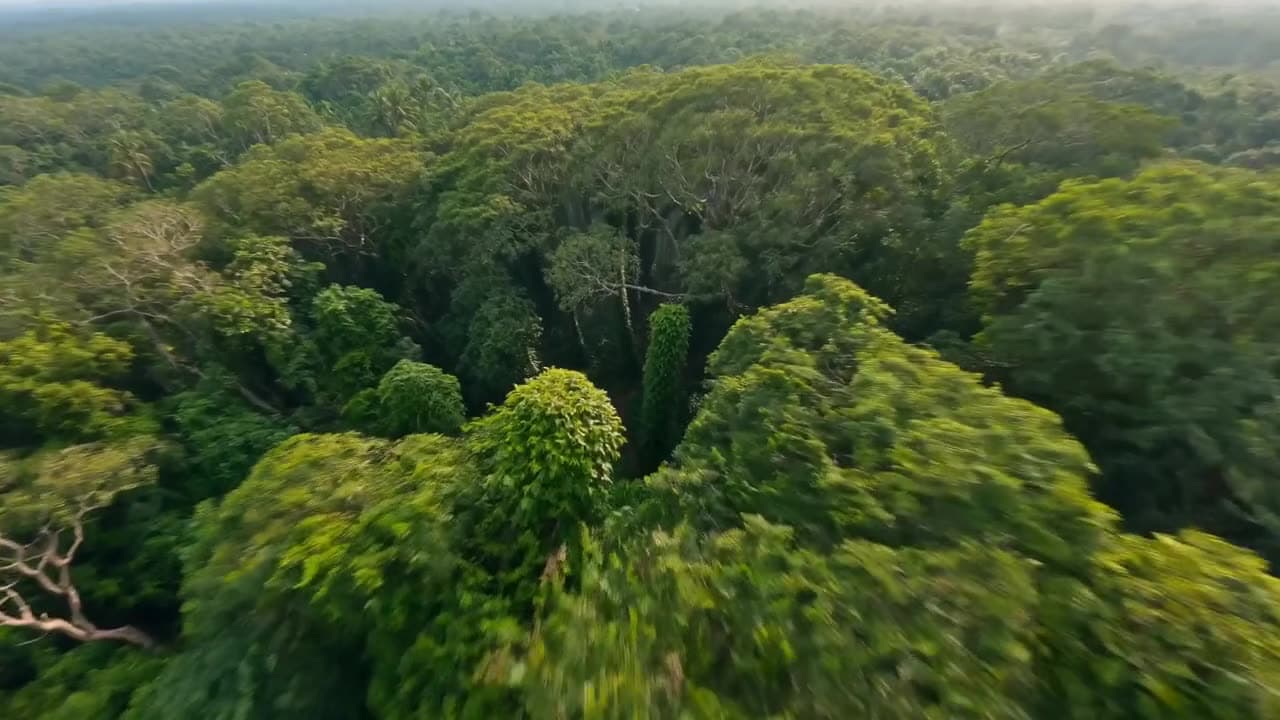
Now break the song into sections — intro, verse, chorus, drop — and give each its own visual energy. A music video isn't one continuous scene; it's a sequence of looks that escalate with the track. Write it as a shot list: performance shots, B-roll, abstract textures, location moments. Match the pacing to the section — slow, held shots in the verse; fast, punchy ones in the chorus.
Lock the artist's look
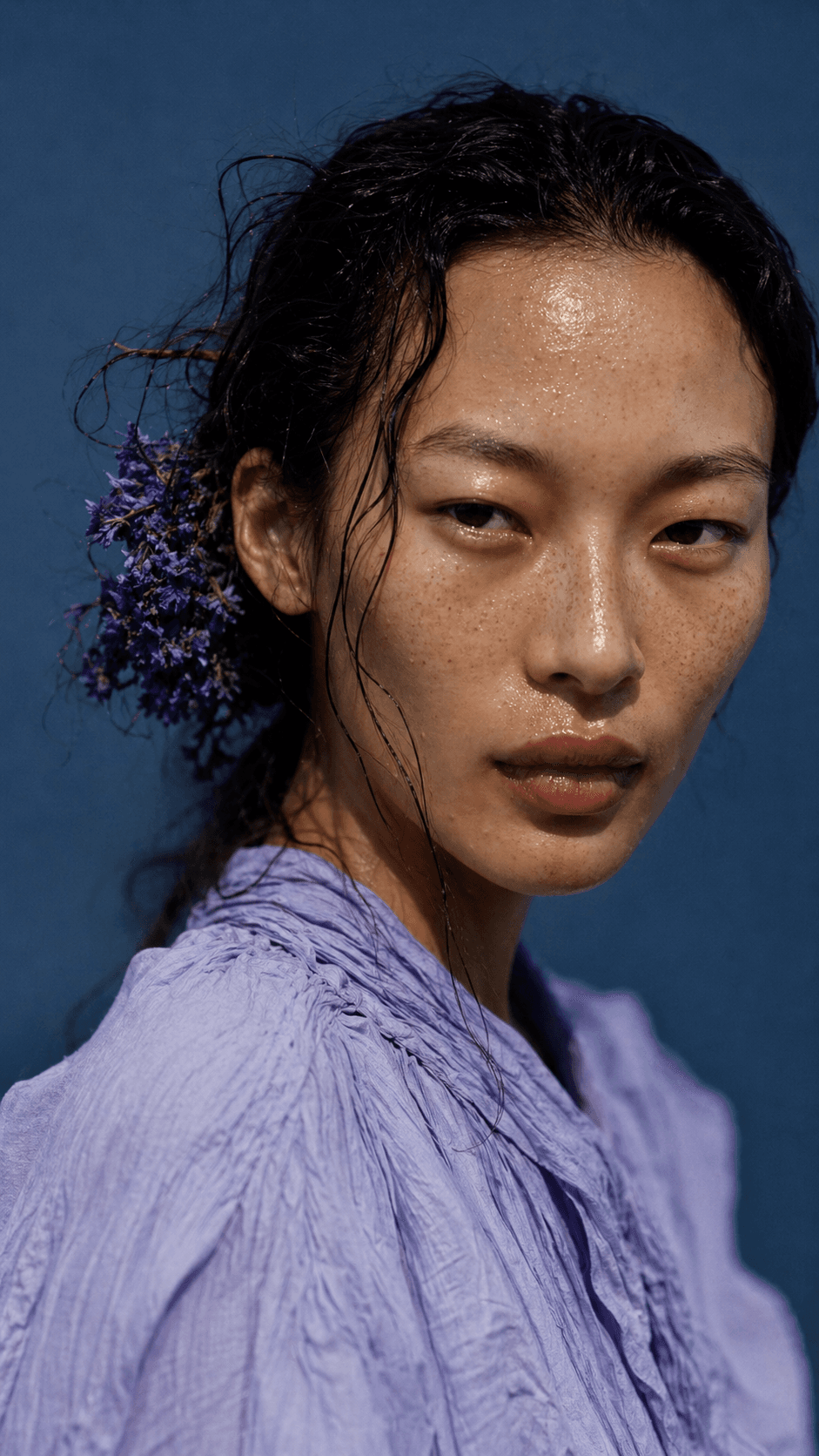
If there's a performer, they have to be the same person in every shot, the same way any recurring character stays consistent. Lock the artist's look — face, wardrobe, style — up front and generate every performance shot from that reference. The same goes for the overall grade: pick one look and hold it, so the video reads as one piece and not a playlist of clips.
Cut to the beat
This is what separates a music video from a slideshow set to music. Because you generated the track, you know its BPM — so place your cuts on the beat: land them on the downbeat, hold a shot across several bars when the music breathes, and cut faster as the energy climbs. Bucksy can cut to a beat grid for exactly this — pass the BPM you set and let the edit ride the track.
Finish it
Burn in the lyrics or captions if the song calls for it, balance the mix (the music is the star here, so it stays up front), and export in the aspect ratio your platform wants. The result is a finished, beat-synced music video built from a single brief.
For the audio fundamentals behind all of this — voice, music, and mixing — see how to add AI audio to your video. Then open Bucksy and describe the song.
Frequently asked questions
Can AI make a complete music video? Yes — it can generate the track, generate the visuals, and cut them to the beat into a finished video. You direct it: approve the look, the pacing, and the edit.
Do I need my own song? No — you can generate an original instrumental track and set its tempo. Making the track first is what lets the visuals cut cleanly to the beat.
How do the cuts line up with the music? By cutting on the beat grid. Because the track's BPM is known, the edit can place cuts on the downbeat — held in calm sections, quicker in the chorus.
How do I keep the artist looking the same? Lock the performer's look as a reference up front and generate every shot from it — the same consistency discipline used for any recurring character.
Chinmay Goyal
Co-founder & CTO, Buckshot Studios
Chinmay builds the agent and model-orchestration stack behind Bucksy. He writes about the craft of AI video — prompting, picking the right model per shot, and keeping characters consistent across an entire piece.
Make it with Bucksy
Describe what you want. Bucksy plans the shots, writes the prompts, picks the model, and returns a finished piece — image, video, and audio from one chat.